


Browse by
category


How to Change Font Style using CSS
I’m convinced that anyone can learn some of the basic tools of CSS to do minor upkeep and make changes to their blog. Everything that I’ve learned so far, I’ve learned from lots of time on Google and reading code. To make it easier, I’m going to post some basic tutorials and tricks for all of you. Feel free to contact me if you have a specific tutorial that you would like to see.
Earlier this week I had a client contact me asking me how to change the font size and color on her blog. Since I use only the Genesis Theme from StudioPress, I can’t guarantee that this is how it looks in other themes (such as Headway or Thesis) but it should look eerily similar.
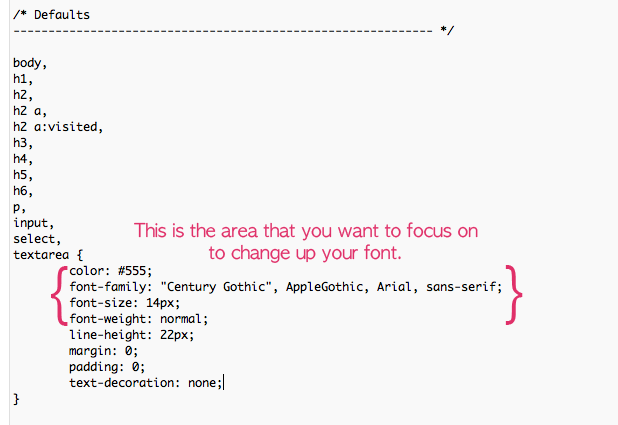
This section of code controls the basic colors and font styles of your blog, including your content text (your actual blog posts).
Changing the Color of your Font
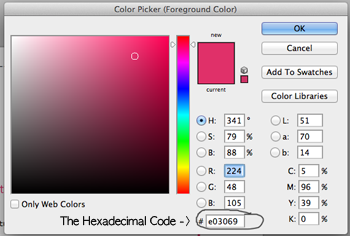
For example, the font in the screenshot above is #555 which is a dark gray. If I wanted to change the color from gray to red, I’d replace #555 with #ff0000. Make sure that you do not remove the # symbol or the semicolon or your code will not work.
Changing the Font Size
Following the “color” section, you will see something that says Font Family. I don’t recommend changing that unless you are familiar with the process and know how to properly switch out a font. After the “font family” is the font size. This is pretty simple and self-explanatory. You can make your font bigger or smaller by adjusting the number. The default in most themes is 12px or 14px. Again, just change the number to the size you want, making sure to leave the px and the semicolon in the code.
Changing the Font Weight
Lastly, you’ll see the font weight section. By default it is set to normal. If you are interested in changing it to a bold font, change the weight from normal to bold.
Let’s Review:
So, say you wanted to change your font from gray to red, make it 16px and bold. This is what your code would look like in the end:
/* Defaults
------------------------------------------------------------ */

body,
h1,
h2,
h2 a,
h2 a:visited,
h3,
h4,
h5,
h6,
p,
input,
select,
textarea {
	color: #ff1010;
	font-family: "Century Gothic", AppleGothic, Arial, sans-serif;
	font-size: 16px;
	font-weight: bold;
	line-height: 22px;
	margin: 0;
	padding: 0;
	text-decoration: none;
}
Please feel free to leave any questions in the comment section! Watch for more tutorials like this in the future. Again, if you have any suggestions or things you’d like to see, let me know!
Truly easy-to-customize websites for those who need a polished look with a quick turnaround.
Learn More ↦
Shop premade designs

Draw in potential customers with a seamless web experience and SEO optimized site pages.
Learn More ↦
website design

Discover your creative voice with a unique logo development & coordinating brand collateral.
Learn More ↦
brand building

A seamless single logo brand identity experience for those with a clear vision.
Learn More ↦
mini-brand experience

to the next level
need DESIGN SERVICES? let's TAKE YOUR VISION


